
.png?width=300&height=150&name=Get%20the%20most%20from%20mtcharge%20(2).png "mtCharge Embedded Payment Processing")
NEW! InvoicePay & NET 30/60/90

InvoicePay
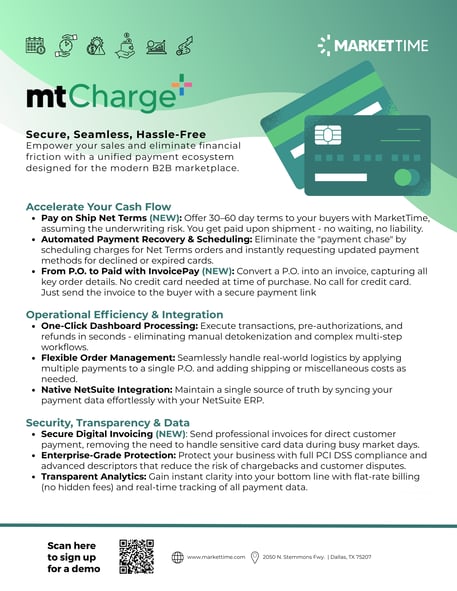
InvoicePay is MarketTime's new invoicing payment solution that enables suppliers to instantly convert a buyer's Purchase Order (PO) into a ready-to-send invoice.
Also known as a PO Flip, this feature eliminates the need to manually create invoices by automatically "flipping" the PO into an invoice that carries forward all key order details, including buyer information, items, pricing, and shipping.
Suppliers can quickly review, adjust, and send the invoice to the buyer with a secure payment link.
NET 30/60/90
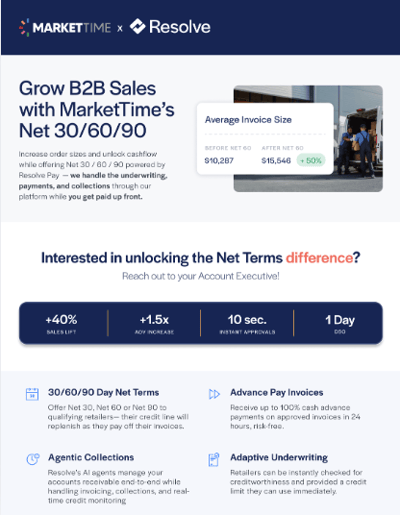
NET 30/60/90, powered by ResolvePay, is another new feature available with mtCharge+ that allows suppliers to get paid upon shipment, even when offering 30, 60, or 90-day terms to their customers.
-
Send Invoice
-
Receive your advance payment in 1-2 business days
-
30/60/90 Days later, your customer pays the full invoice amount to Resolve
-
Resolve handles the underwriting, payments, and collections. You get paid up front.
For more information, click on the image above or by visiting the page here.

mtCharge+ Overview


New Customers
Welcome to mtCharge+
As you get started, you may find it helpful to bookmark this page and come back to it as you have questions. There are instructions, links to articles, and videos to guide you. And if you ever get stuck, our Technical Support team is here to assist, as well.
mtCharge+ Training Webinar
Tools & Resources
Logging into MarketTime for the First Time:
-
Navigate to MarketTime (https://apps.markettime.com)
-
Click "Forgot Password" (https://apps.markettime.com/forgot-password)
-
Enter the user name provided in your mtCharge+ welcome email (if this is unavailable, email support@markettime.com to retrieve the information)
-
Follow the steps shown on-screen to reset your password.
Locating mtCharge+ Reports:
-
Log in to your MarketTime account
-
Navigate to "Reports & Analytics" in the left-hand menu
-
Select "Advanced Analytics"
-
Choose Report #10
Popular Support Center Articles:
A Few Pointers
Pointers as You Start Using mtCharge+
-
Be sure to update the payment terms you would like to accept. EX: if you would like to accept Net 120-mtCharge with CC, you will need to have that enabled in the dropdown.
-
If you manage your data, you can update payment terms in "Order Settings." If your agencies manage the data on your behalf, they will need to make these changes.
-
-
Credit card details tied to orders transmitted before your mtCharge+ setup will not be able to be processed via mtCharge+. For these orders, you will need to manually retrieve the credit card details via Hosted PCI or 3rd party gateway and process them outside of MarketTime.
-
As an alternative, those previously using HostedPCI may retrieve card details from prior orders and use the ad-hoc (on-demand) feature of mtCharge+ to process payments. For information on using this feature in MarketTime, click here.
-
-
Transaction Summary and Refund Reports can be found within the MarketTime Portal (apps.markettime.com) under “ADVANCED ANALYTICS”, Report #10. Please email support@markettime.com if you are unable to access your account or if additional members of your team require access.
-
The default setting for Pre-Authorization is deactivated. If you would like to enable pre-authorization, please email support@markettime.com.
-
The information you provided in your mtCharge+ application (your legal name, DBA name, or specified descriptor) will appear on the retailer's credit card or bank statement. See the article HERE for more information. mtCharge+ features clearer payment descriptors on retailer credit card statements, which will help reduce chargebacks caused by customers not recognizing your business name on their statements. This improvement in statement clarity will help customers better identify their purchases with your business. To help mitigate the risk of a customer not recognizing the charge and disputing the transaction, MarketTime recommends including a note with each invoice regarding how the charge will look on the customer's credit card or bank statement if something other than your name appears. (Other ideas include adding a note on your eCommerce site, adding a footer to your email, etc.)
If you have a technical question or need help, you can reach our Support Team at support@markettime.com.
Customer Reviews
I was doing so much work just to run a payment on an order... Once I learned about mtCharge, and that it was just one click next to the order, life was easy Alan Levin, Maya J Jewelry
mtCharge really changed our life. It is so simple. I log into the back end, go into our orders, and I literally capture payment. It is that easy. It has saved me 20 hours a week. Bree Fullerton, Founder & CEO, Shinery
All I can say is WHY DID WE WAIT SO LONG?! MarketTime has been a game changer for us and has freed up time to work on growing the business. Jamie, Co-Owner of Splendid Iris